The humble mouse. When I left the Apple ecosystem for Linux back in 2024, I knew that it was likely that I’d really miss my MacBook Pro’s trackpad. For reasons I don’t fully understand (though I do know about some of the nuance involved) nobody seems to be able to replicate the smoothness and precision of the Apple trackpad experience. That said, I was surprised by how well the trackpad on my Framework laptop worked, but it still just wasn’t the same and, more important, simply wasn’t good enough.
I tried multiple mice. I found that they worked well as pointing devices, but the resolution of the scroll wheels was awful. No hacks or tweaks or third-party drivers would fix it. I found them all simply unusable.
Eventually, I got a Ploopy Knob. It’s just a scroll wheel, not a mouse or pointer of any kind. So I had to have a regular mouse on my desk as well as the Knob which meant moving my hand more than I liked and taking up valuable desk space. At the time, I lamented “What I really want is the Ploopy mouse, but with the scroll wheel replaced by a Ploopy knob.”
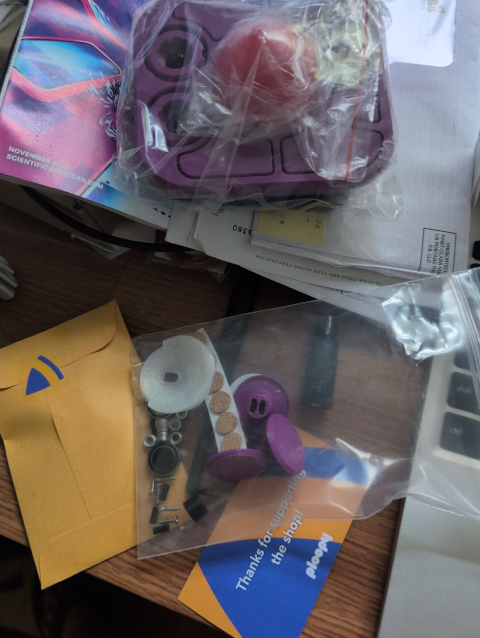
Ploopy (nor anyone else of whom I’m aware) has made such a glorious combination, but Ploopy just released a trackball, the “A+”, with two scroll knobs that work like the Knob that I love. I get along well with trackballs, so I pre-ordered one. I had to wait two months, but the kit arrived today. It was a bit more involved than I expected: I had to solder in a chip and swedge shafts onto bearings. But it took well under an hour, and I wasn’t rushing.
And it worked! The trackball points well and allows fine control, and the scrolling is smooth and precise. The best of both worlds, as long as you’re a trackball person.
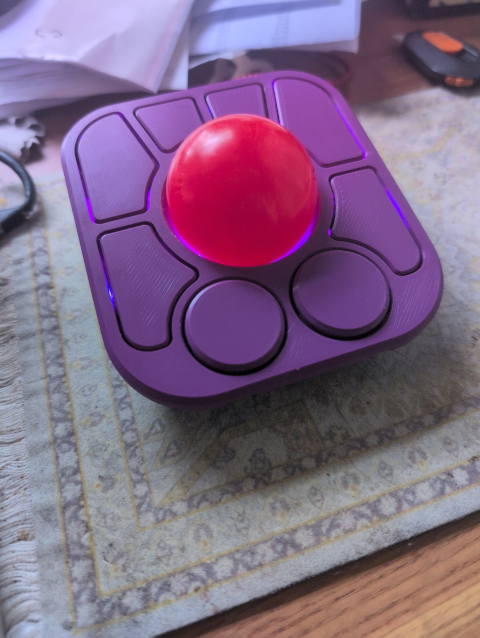
There was one rather frustrating thing. The A+ has eight buttons. Extra mouse buttons can be pretty useful, but neither the default utility in KDE/Plasma nor other tools I tried (key-remapper) could even see most of the extra buttons. Ploopy is certainly aware: they have a FAQ that suggests using the Via web app, but even after you find a compatible (Chromium-based) browser it simply doesn’t work. Ploopy explains that they don’t provide tech support, and to ask in the Discord. Ugh. There is some serious disconnect between the way my brain works and Discord’s way of organizing and presenting information. I always stuggle mightily with getting support on Discords, and today was no exception. Clearly I’m not alone, either, as the community members on the Discord were lamenting how they have to answer the same question over and over again: apparently, nobody else is able to find the answers either.
Yet, still, none of them put all the instructions in one place… then they complained that “the last guy ran into the same roadblocks”. Well, yeah, and you knew that, but didn’t give the whole story. You get lots of partial instructions or recipes with missing steps. So in case you’re wondering…
- You have to go to Ploopy’s “appendix” on using Via with the A+.
- You have to copy a multi-page json file, then paste it into your text editor and save it.
- You have to go to the VIA web app using a Chromium-based browser (Chromium, Google Chrome, Microsoft Edge, and others).
- You have to click on the gear icon (“SETTINGS”) at the top of the Via app.
- You have to enable “Show Design tab”. This step was omitted from every iteration of the instructions I found.
- You have to click on the little paintbrush icon, “DESIGN”. (I don’t design with a paintbrush, do you?)
- You have to acknowledge that the Design function is “intended for development and troubleshooting.” Remember that you were sent here by the device’s manufacturer.
- You have to upload the json file you saved earlier.
- You have to click on the little keyboard icon, “CONFIGURE”.
- You have to click on Authorize Device and choose the A+.
- You get an inscrutible error message. After several more pages of searching, I discovered that you also have to go to the qmk_udev GitHub page.
- Download the appropriate source file in your terminal (yes, we’re doing command line things now).
- Install qmk_udev thusly:
wget https://github.com/qmk/qmk_udev/releases/latest/download/50-qmk.rules
sudo install -m755 -D qmk_id /usr/lib/udev/qmk_id
sudo install -m644 -D 50-qmk.rules /etc/udev/rules.d/50-qmk.rules
sudo udevadm control --reload
sudo udevadm trigger
- Now, finally, if you mess around a bit, you can see how to remap the keys.
I assume… I truly hope… that Ploopy plans to simplify the procedure. If they can’t eliminate a few of the fourteen steps, at least they could put COMPLETE and ACCURATE instructions all in one place instead of sending their users to flail around in Discord and finally find the magic GitHub page and use terminal commands all for the purpose of making the extra keys on the trackpad — a touted feature — actually work. There was only one key I really wanted to remap, so if I use the key for the rest of my life I’m not sure I’ll save as many keystrokes as it took to get it remapped.
Still, so far, I’d 100% endorse the Ploopy A+ trackball if you’re looking for a good pointing device with genuine smooth scrolling. I’m glad I have it, and I’m hoping the support nightmare was just teething trouble. The design and firmware are all open-source, including the design files for the 3-D printed plastic parts.
—2p